



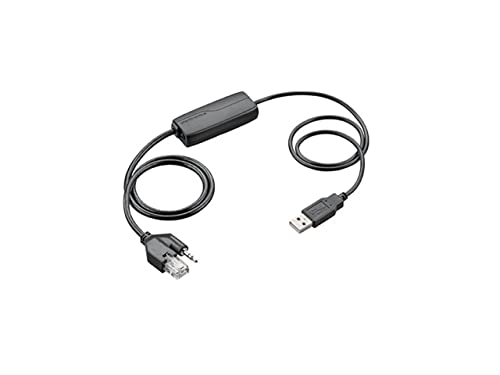
Plantronics EHS Cable | Remote Call Control for Desk Phones
Our Plantronics EHS cable transforms how you manage desk phone calls by enabling full remote call control directly from your wireless headset. This electronic hook switch adapter connects your Plantronics headset base to compatible Cisco, Avaya, Polycom, and other major desk phone systems, eliminating the need to physically lift the handset for every call.
Designed for professionals who spend hours on the phone daily, the cable automates call answering and ending with a simple press of your headset button. You maintain mobility up to 350 feet from your desk while preserving complete control over incoming and outgoing calls. The plug-and-play design requires no software installation—connect the cable between your headset base and phone’s auxiliary port, and remote call control activates immediately.
EHS cable core specifications
How Electronic Hook Switch Technology Works
Electronic hook switch technology replaces the mechanical handset lifter by sending digital signals directly through your desk phone’s auxiliary port. When a call arrives, your headset alerts you with a ringtone; pressing the headset call button sends an electronic signal through the Plantronics EHS cable to your phone, instructing it to connect the call without physically moving the handset. The same button press ends calls when you’re finished.
This digital approach offers several advantages over mechanical lifters. There are no moving parts to wear out, no motors to maintain, and no risk of misalignment when you move your desk phone. The cable draws minimal power from your phone’s auxiliary port—typically under 50 milliamps—so it doesn’t strain your desk phone’s power supply. Because the connection is purely electronic, call audio quality remains pristine with no interference from mechanical components.
Compatibility Across Major Desk Phone Systems
Our Plantronics EHS cable supports over 40 different desk phone models across Cisco, Avaya, Polycom, Mitel, and Nortel platforms. Cisco 7900 series phones (models 7940, 7941, 7942, 7945, 7960, 7961, 7962, 7965, 7970, 7971, 7975) all feature the auxiliary port required for EHS connectivity. Avaya compatibility extends through the 1600 series (1608, 1616) and 9600 series (9608, 9611, 9621, 9641) models.
Polycom VVX and SoundPoint IP phones from the 300, 400, 500, and 600 series connect seamlessly, as do Mitel 5300 and 5300 IP series desk phones. For organizations running mixed phone environments, we maintain a detailed compatibility matrix on our support portal showing exactly which cable variant matches each phone model. Some phone systems require a firmware update to enable EHS functionality—your IT department can verify this through your phone system’s admin console before deployment.
Installation and Desk Phone Port Configuration
Installing the Plantronics EHS cable takes under two minutes with no tools required. Locate the auxiliary port on your desk phone—it’s typically labeled ‘AUX’ or marked with a headset icon, usually positioned on the lower back panel or side of the phone base. Unplug your Plantronics headset base from power, insert the RJ-9 connector from the cable into your phone’s auxiliary port, then connect the proprietary end to the port labeled ‘AUX’ or ‘EHS’ on your headset base.
Reconnect power to the headset base and wait for the base indicator light to complete its startup cycle—usually 10-15 seconds. Some desk phone models require you to enable the headset port through the phone’s settings menu. Press the ‘Settings’ or ‘Menu’ button on your desk phone, navigate to ‘Accessories’ or ‘Headset Settings’, and select ‘Enable Headset Mode’ or ‘EHS Mode’. The exact menu path varies by manufacturer, but our quick-start guide includes screenshots for the 15 most common phone models. Once enabled, test the connection by pressing your headset call button—the desk phone should display an active line without you touching the handset.
Compatible Plantronics Accessories for Desk Phone Integration




Rated 4.8 by verified buyers
Common Questions About Plantronics EHS Cable Functionality
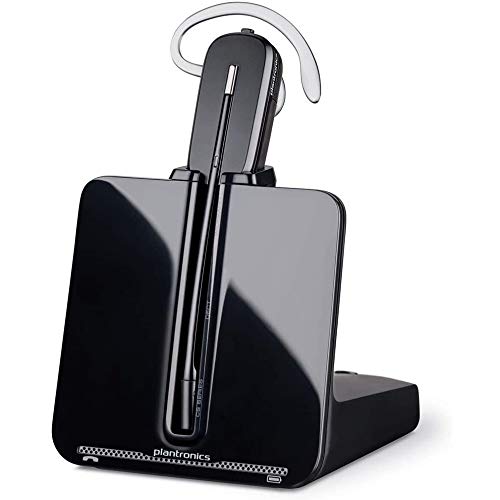
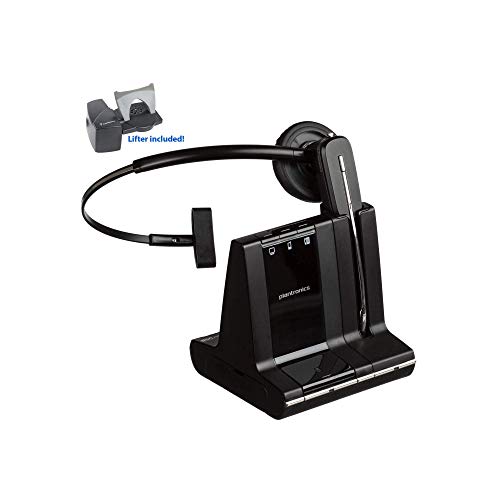
The cable is compatible with Plantronics CS500 series, Savi W700 series, and EncorePro wireless headset systems that feature an auxiliary or EHS port on the base unit. Older Plantronics headset models without a dedicated EHS port on the base require a mechanical handset lifter instead.
If your headset base has a port labeled ‘AUX’, ‘EHS’, or shows a headset icon next to a modular jack, the EHS cable will work. Check your headset base’s rear or side panel for this port before ordering.
An EHS cable sends electronic signals through your desk phone’s auxiliary port to control calls digitally, while a handset lifter physically raises and lowers your phone’s handset using a small motor. The EHS cable has no moving parts, operates silently, and never requires alignment adjustments.
Handset lifters remain the better choice for desk phones that lack an auxiliary port or for phone models incompatible with EHS technology. The cable offers superior reliability and cleaner desk appearance when your phone supports it.
No, the cable uses a proprietary connector on the headset base side that only fits Plantronics wireless base units. The phone-side connector is a standard RJ-9 modular plug, but the signaling protocol and pin configuration are designed specifically for Plantronics equipment.
If you’re using a Jabra, Sennheiser, or other brand headset, contact that manufacturer for their compatible EHS cable model. Each headset brand uses different electronic hook switch signaling standards.
The cable requires your desk phone’s auxiliary port to be enabled in the phone system settings, which may need administrator access. Some organizations disable auxiliary ports by default for security or call recording compliance reasons.
Contact your IT department before ordering if you work in a regulated industry like finance or healthcare. They can verify whether EHS functionality is permitted on your phone system and enable the port remotely if allowed.
The APV-63 cable works with Cisco 7900/8900/9900 series and Avaya 1600/9600 series phones. Polycom SoundPoint IP and VVX phones require the APU-76 variant instead. Different phone manufacturers use different auxiliary port signaling protocols, so cable variant selection depends on your specific phone model.
Our compatibility chart lists over 40 supported phone models with their correct cable variant. If your phone model isn’t listed, contact our support team with your phone’s exact model number and we’ll confirm compatibility within one business day.
The EHS cable controls the primary active line on your desk phone. If you have multiple line appearances configured and a call comes in on line 2 while you’re on line 1, you’ll need to manually press the line button on your phone to switch lines before the headset button can answer it.
For contact center environments requiring rapid switching between multiple simultaneous calls, consider upgrading to a headset system with line-selection buttons on the base unit rather than relying solely on EHS cable control.
Unplugging the cable during a call immediately disconnects the audio path, ending the call from your headset’s perspective. The desk phone may hold the line open depending on its configuration, but you won’t hear the caller and they won’t hear you.
If you need to switch from wireless headset to handset mode mid-call, press the headset button to place the call on hold first, unplug the EHS cable, then lift the handset and resume the call. This preserves the connection through the transition.